STOP GUESSING. START REFFING.
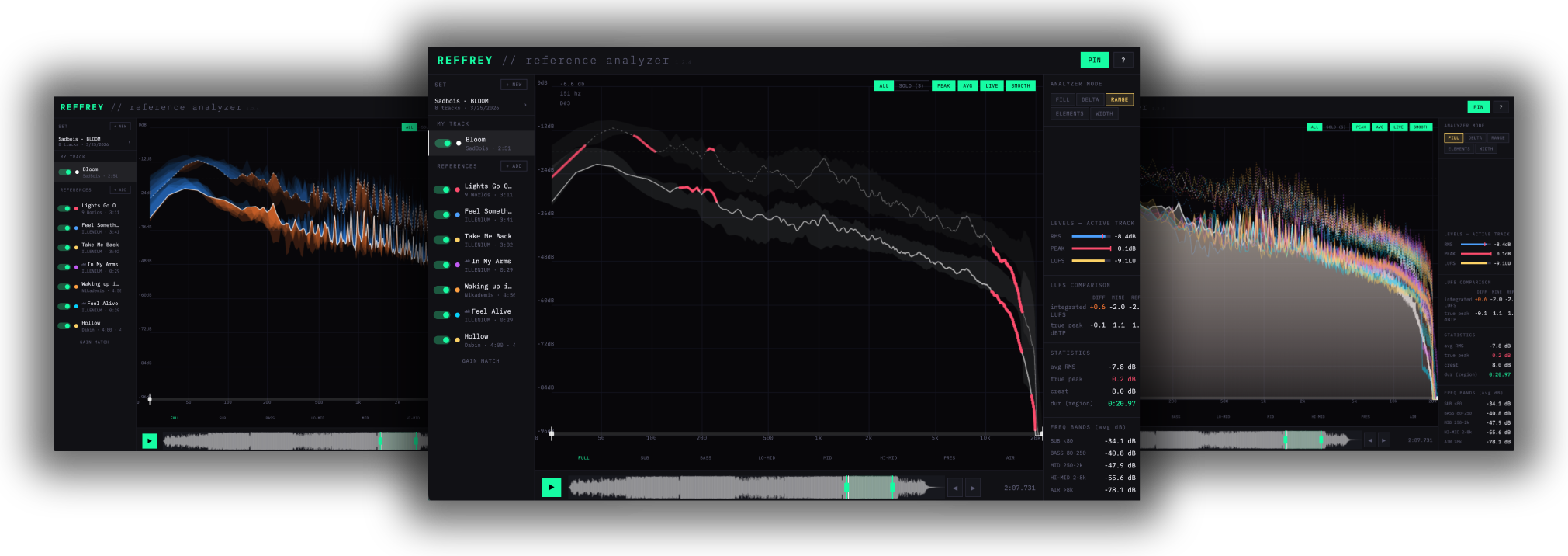



Your map to festival-ready sound
We've completely rethought reference tracks to give you the most accurate, precise, and actionable picture of how to make your tracks hit as hard as your favorite artists.
Instantly see where your mix is off
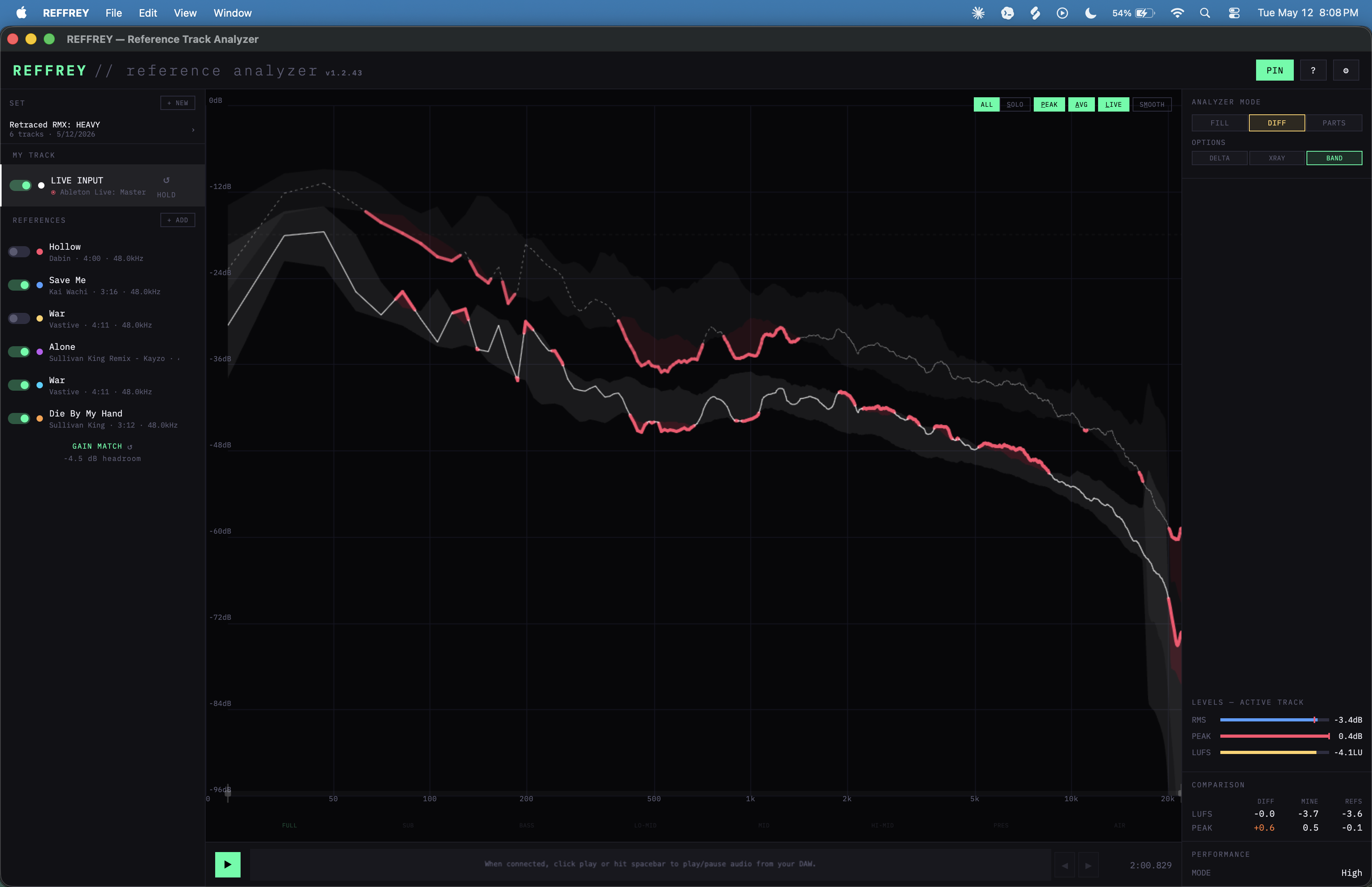
DIFF mode provides a simple, accurate view of where your track sits compared to your whole group of references.
Know exactly what to adjust
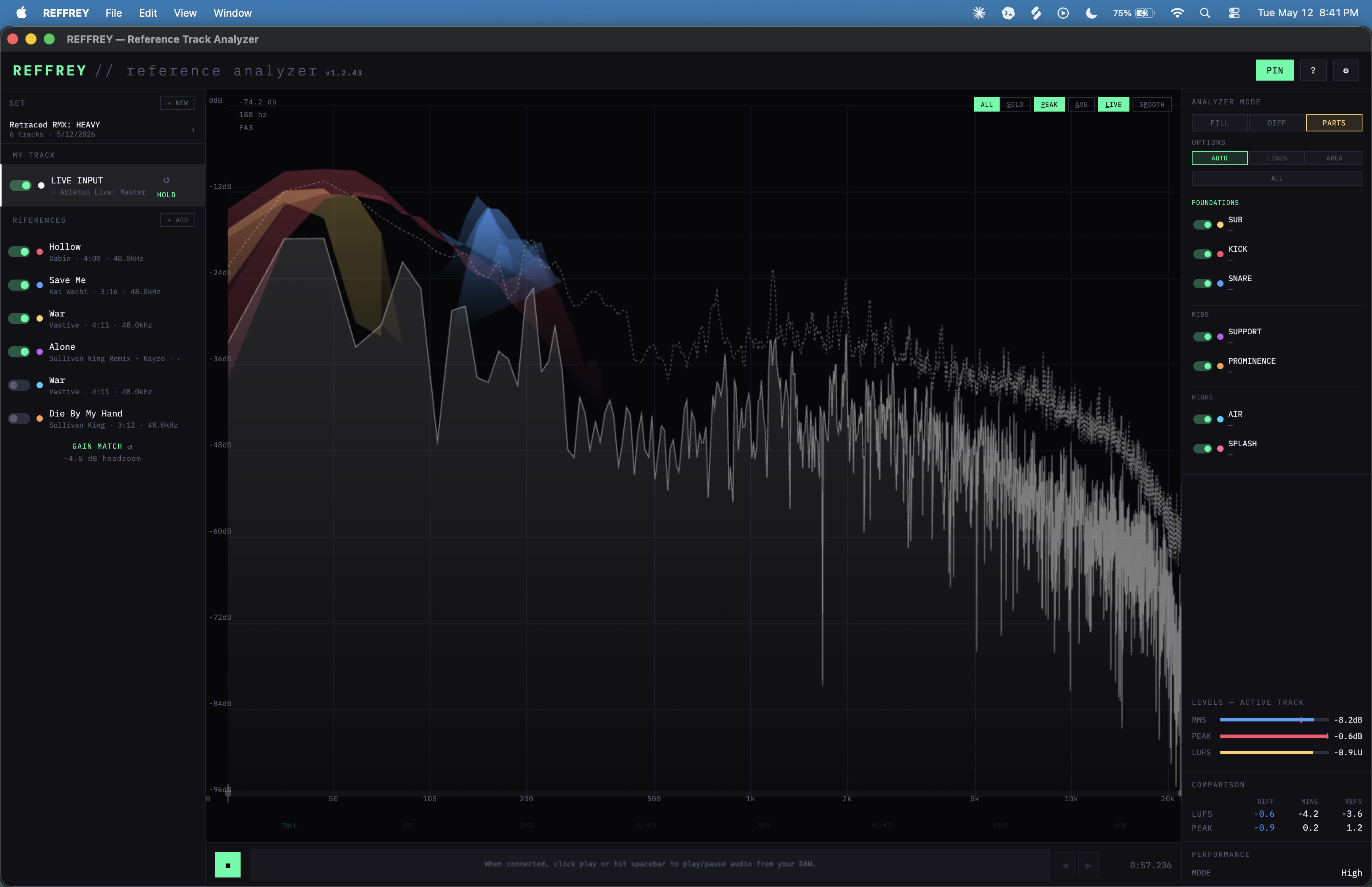
PARTS mode gives you the finest level of detail available… maybe ever. Identify exactly where certain elements like sub, kick, snare, leads, vocals, etc. sit in your references, and adjust yours to match.
Save and import reference tracks
Reference tracks are automatically saved into your reference library, so you can get the next project going with a single click. No reference tracks? No problem. Search and import 30-second clips of any track directly with our Deezer integration.
PLUS
- ▸Gain matching
- ▸Real-time stereo width comparison
- ▸Loudness metering (LUFS, RMS, peak)
- ▸Lightweight VST3 / AU plugin — pure passthrough, zero latency impact
- ▸Tested in Ableton, Reaper, Logic, and FL Studio. May work in other DAWs that support VST3 / AU plugins
- ▸macOS 12 or later — Apple Silicon and Intel
- ▸Windows 10 / 11 — x64
Frequently Asked Questions
What is REFFREY?
REFFREY is a highly popular reference track analyzer introducing groundbreaking reference comparison features to help music producers analyze their track against professionally produced music with unprecedented detail and precision. For example, PARTS mode shows exactly where elements like the sub, kick, and snare live in the reference mixes, and how yours compare. DIFF mode clearly displays differences between your track and your references so you know where yours is too hot, or could use more energy. And the reference library makes it easier than ever to save, manage, and even import references directly within the plugin.
What is a reference track analyzer?
A reference track analyzer is a tool that lets music producers compare their mix directly against professional recordings. Instead of relying on your ears alone, you load reference tracks and see exactly how your frequency balance, loudness, stereo width, and other characteristics compare — in real time. REFFREY takes this further with DIFF mode and PARTS mode, giving you a level of visual precision no other reference tool offers.
Is REFFREY a plugin or a standalone app?
Both. REFFREY works as a standalone desktop app — no DAW required — and as a VST3/AU plugin you insert into your DAW's master channel to analyze your mix in real time as you work. The plugin is a pure passthrough with zero latency impact.
What DAWs does REFFREY work with?
REFFREY has been tested in Ableton Live, Logic Pro, Reaper, and FL Studio. It should also work in any DAW that supports VST3 (Windows and macOS) or AU (macOS) plugins. It also runs as a standalone app with no DAW required.
Does REFFREY work on Windows?
Yes. REFFREY is available for Windows x64 as a standalone app and VST3 plugin. It's also available for macOS, supporting both Apple Silicon (M-series) and Intel Macs, with VST3 and AU plugin formats.
What are the system requirements?
macOS 12 (Monterey) or later on Apple Silicon or Intel, or Windows 10 / 11 on x64. The plugin needs a DAW that supports VST3 (Windows and macOS) or AU (macOS).
Do I need reference tracks to use REFFREY?
No. REFFREY has built-in Deezer integration that lets you search and import 30-second clips of any song directly in the app. You can also upload your own reference tracks or pull from your saved reference library.
What audio formats does REFFREY support?
REFFREY supports all common audio formats including WAV, AIFF, and MP3. You can also import reference tracks directly via the built-in Deezer integration without needing local files at all.
How much does REFFREY cost?
$29 during the launch sale (regular price $199), one time. That gets you a lifetime license on up to 3 machines with all future updates. There's no subscription and no account required. If it isn't for you, request a refund within 14 days from the support page, no questions asked. Early adopters who got a free key before launch keep it forever, nothing changes for you.
What has the reception to REFFREY been?
Very positive. The launch post on r/edmproduction received 821 upvotes, 282 comments, 4 awards, and 1.6k shares — making it the #4 most popular post of the year in one of the largest music production communities online. REFFREY has been featured editorially by Bedroom Producers Blog and picked up organically by KVR Audio, Gearspace, and multiple other music production communities and YouTube channels — all without any paid promotion.
What makes REFFREY unique?
REFFREY does things no other reference tool does. You can load an entire group of reference tracks and compare your mix against all of them simultaneously — not just one at a time. DIFF mode is entirely unique to REFFREY: it visually highlights the exact differences between your track and your references, including a reference band that makes it instantly clear when your mix falls outside the range of your references. And PARTS mode is in a category of its own — it outlines individual musical elements like sub, kick, and snare directly from your references, so you can compare with a level of precision and granularity that nothing else on the market comes close to.
How does REFFREY compare to Metric AB?
Metric AB is a solid reference tool, but it doesn't offer group referencing, DIFF mode, or PARTS mode. With REFFREY, you load multiple reference tracks and compare your mix against the whole group at once. DIFF mode highlights exactly where your track diverges from your references — including a visual reference band so you instantly see when your mix falls outside. PARTS mode takes it further by breaking down individual elements like sub, kick, and snare from your references, giving you a level of granular insight no other tool offers.
How does REFFREY compare to Reference 2 / Reference 3?
Reference 3 by Mastering The Mix is a popular choice, but it doesn't offer group referencing, DIFF mode, or PARTS mode. REFFREY lets you compare your mix against multiple references simultaneously. DIFF mode visually highlights where your track diverges and draws a reference band so you instantly see when your mix falls outside. PARTS mode then isolates individual mix elements like sub, kick, and snare from your references — a level of granular insight Reference 3 simply doesn't provide.
How does REFFREY compare to Voxengo SPAN?
Voxengo SPAN is a spectrum analyzer — it shows you what your track looks like, but it wasn't built for reference comparison. REFFREY is purpose-built for it: load your references, and DIFF mode immediately highlights exactly where your mix diverges. PARTS mode then breaks down the individual elements in your references — sub, kick, snare and more — so you can see precisely where everything sits. That's a fundamentally different and more actionable workflow than a spectrum analyzer alone.
How does REFFREY compare to Tonal Balance Control?
Tonal Balance Control by iZotope compares your mix against statistical frequency targets derived from reference libraries. REFFREY takes a more direct approach: you choose the exact tracks you want to sound like and compare against those specifically. DIFF mode shows the precise differences between your mix and your chosen references, and PARTS mode outlines the individual musical elements — sub, kick, snare — in those references so you can match them with a precision that statistical averages can never provide.
How to REFFREY
Analyzer modes
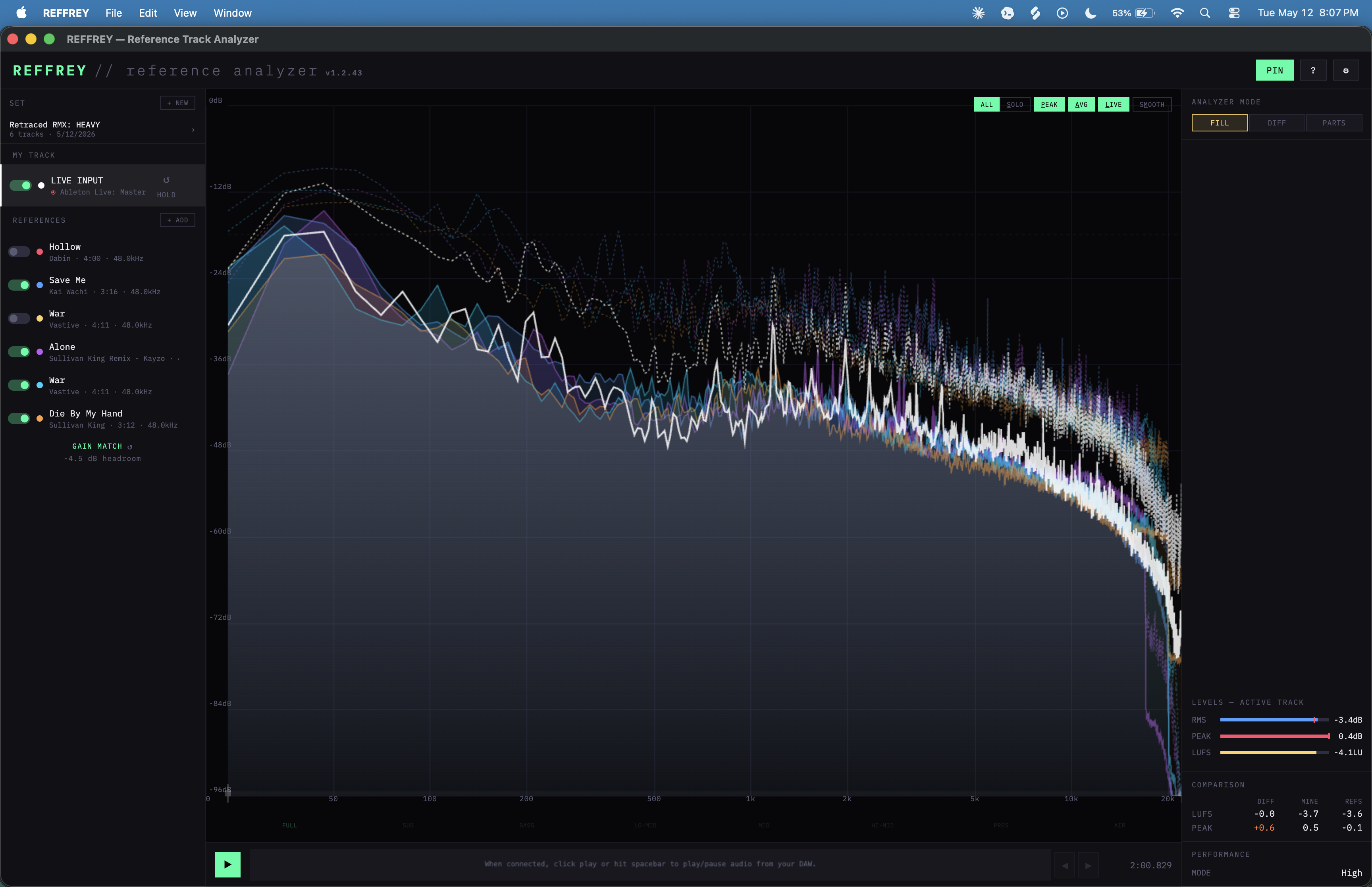
FILL
- FILL mode shows PEAK, AVG, and LIVE data for all enabled tracks. Selecting a track brings its data to the front of the chart.
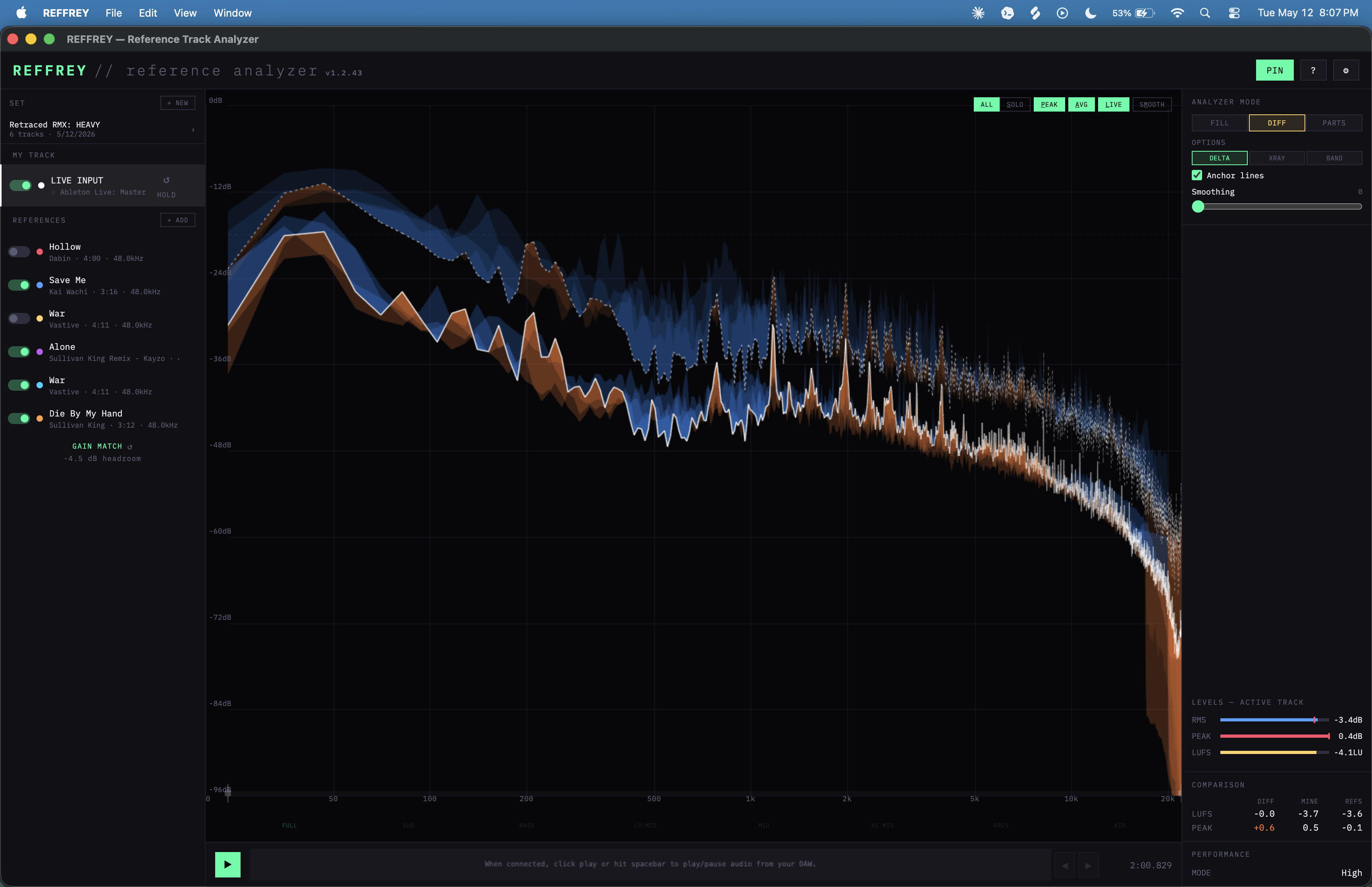
DIFF: DELTA
- DELTA mode shows how your track compares to your references by shading the differences in orange or blue. If your track is 'hotter' (higher energy) than a reference, the difference is shaded in orange. If your track is 'cooler' (lower energy), the difference is shaded in blue. Each track gets a new layer of shading, so more color means more references in that area.
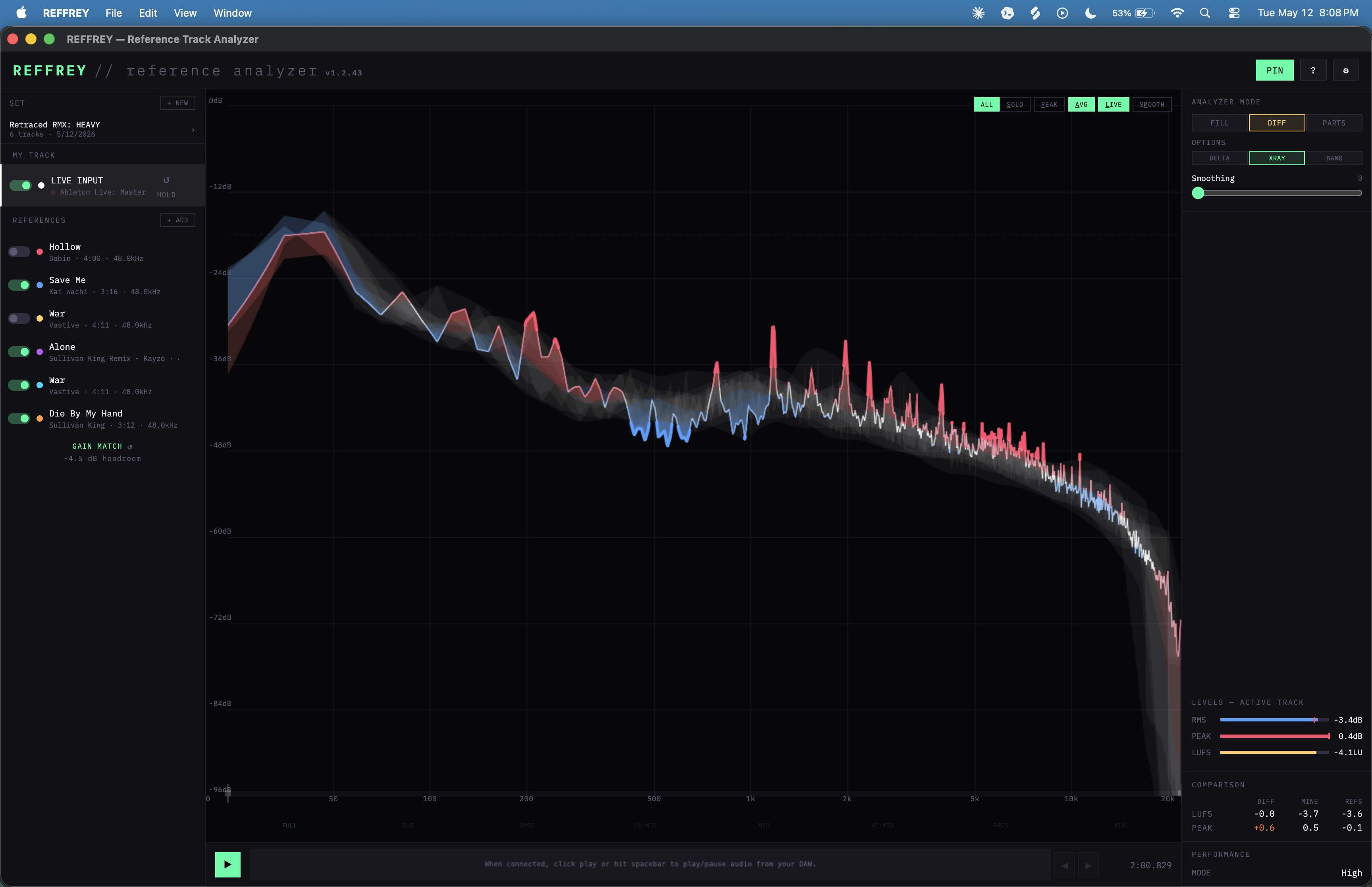
DIFF: XRAY
- XRAY mode draws a band around each reference track, and then applies a layer of red or blue shading to your track each time it falls outside a reference band (red = high, blue = low). If your track is fully outside ALL the reference bands, the line will also be highlighted in red or blue.
DIFF: BAND
- BAND mode provides a simpler display by intelligently combining all of your active reference tracks into a single reference band with progressive smoothing. The same smoothing is also applied to your track for clean comparison. If your track falls outside the band, it goes red.
PARTS
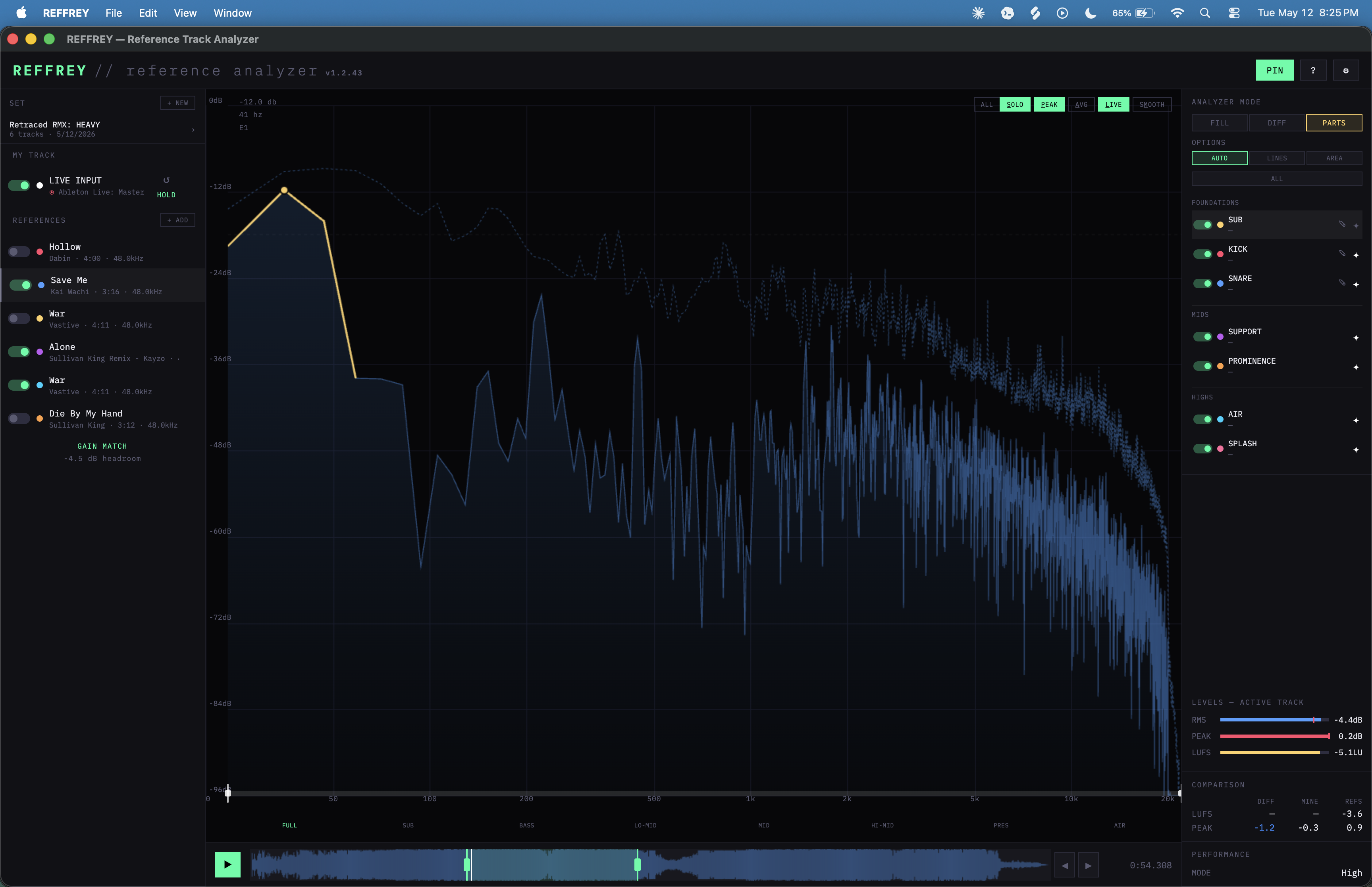
- PARTS mode shows where individual musical elements sit in your reference tracks, and superimposes those elements onto your track to help you compare parts like SUB, KICK, and SNARE directly.
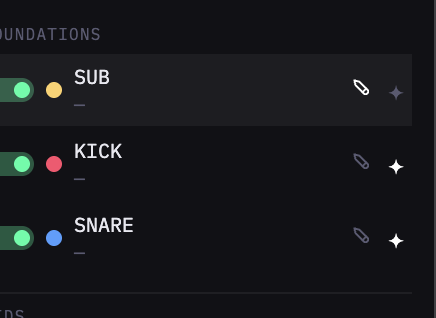
- REFFREY draws PARTS automatically, but it's not perfect (yet), so you can also draw in the PARTS manually. To do so:
- Select the PART, pause the track, and hover over the LIVE line. Segments of the line will be highlighted as you hover.
- Click to save the highlighted segments to the selected PART. Repeat to add more segments until you're happy with the shape. If you already have segments saved and click again, the higher of the two line segments will be saved, making it easy to keep adding to a part until you've captured the whole thing. Due to sampling rates, it can be helpful to draw a few different instances of KICK and SNARE to catch portions that may be missed by one sampling window.
- BIG PRO TIP: use the step forward / backward buttons (or hold Shift and press ⬅️ LEFT / ➡️ RIGHT arrow keys) to step through the track one FRAME at a time for exquisite detail and control while drawing PARTS.
Setup
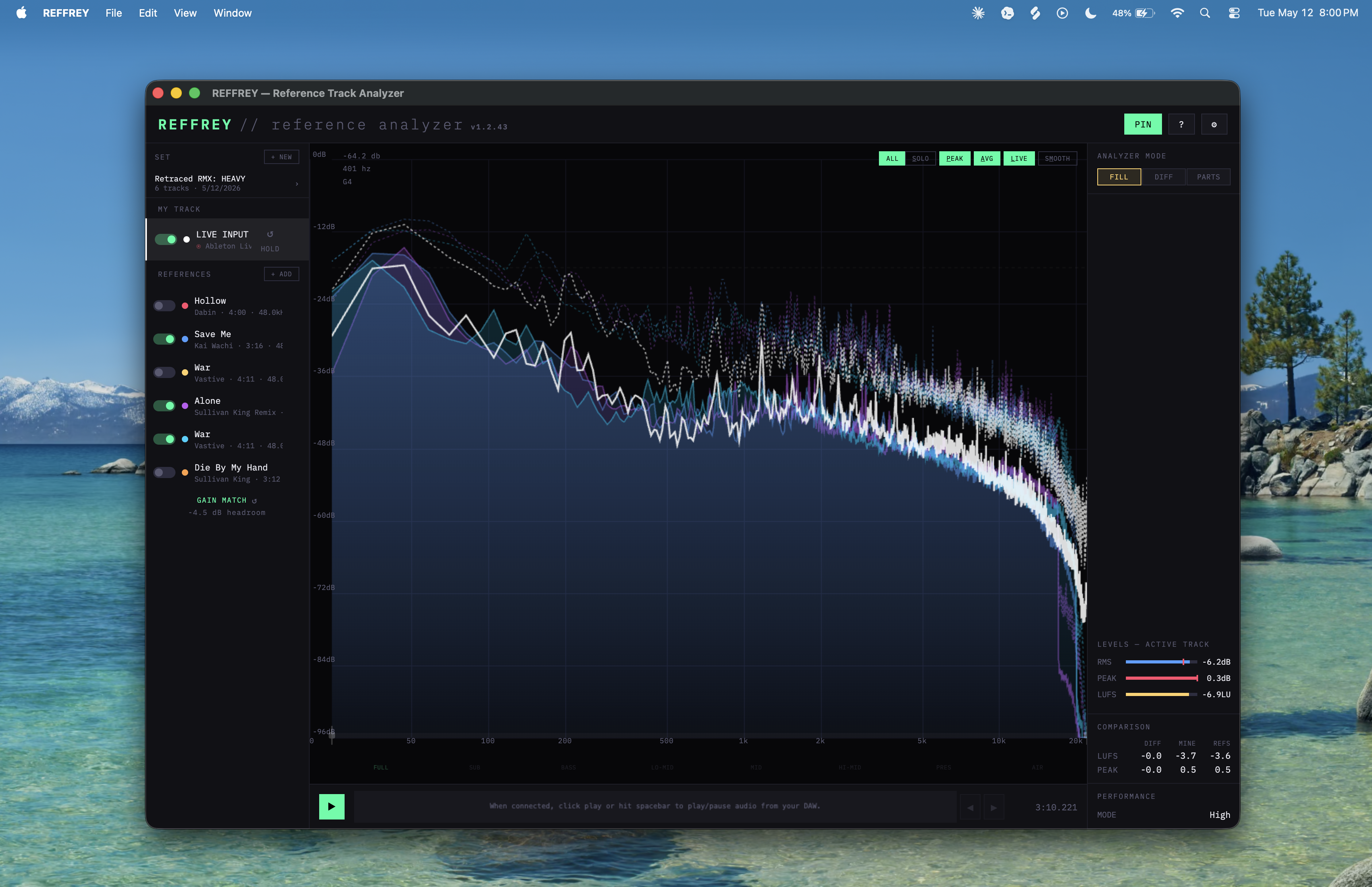
Use REFFREY as a standalone app
- Open REFFREY directly from your Applications folder, Start menu, desktop shortcut, etc. (no DAW required)
- Upload your tracks
- Get REFFing
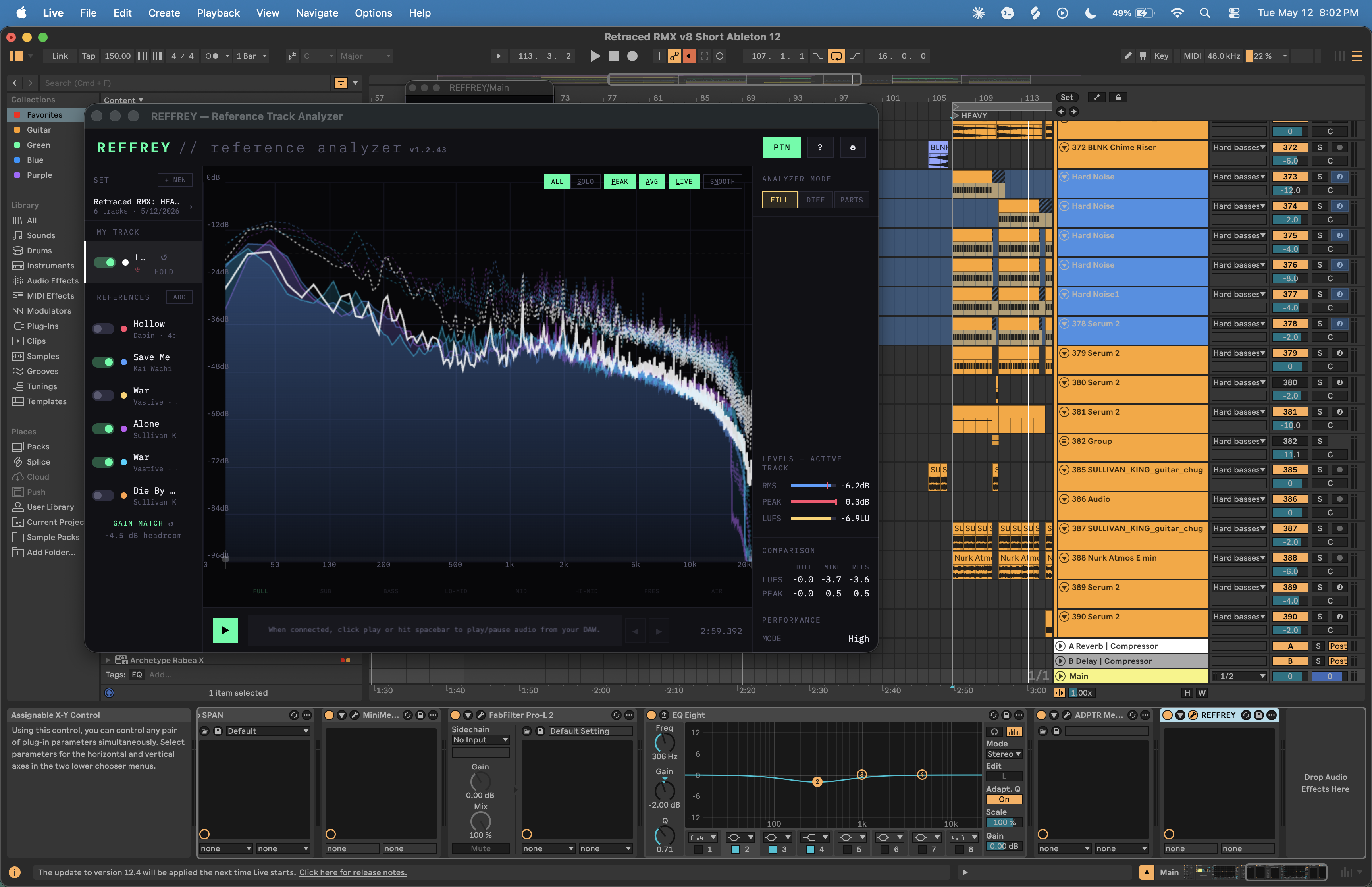
Use REFFREY with your DAW
- Add the REFFREY plugin to your DAW master channel after all effects, limiters, EQ, etc.
- In REFFREY, select 'LIVE INPUT' from the 'my track' section
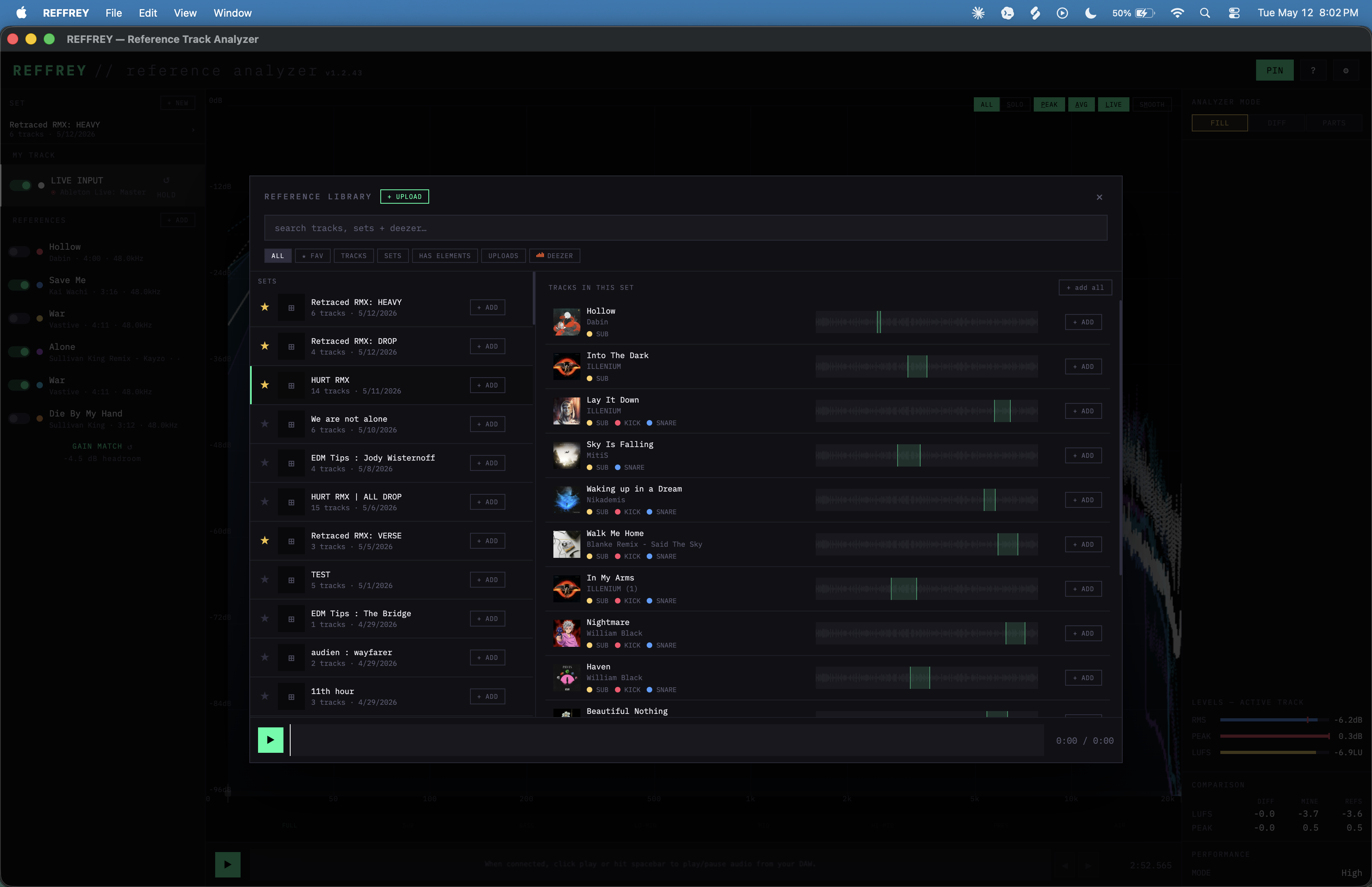
Add reference tracks (4 methods)
- Open the reference library (ctrl+F / cmd+F keyboard shortcut)
- Upload new reference tracks (wav, aiff, mp3, etc.)
- Add from your saved reference tracks
- Add saved reference SETS (major time saver)
- Search and import Deezer clips 🤯
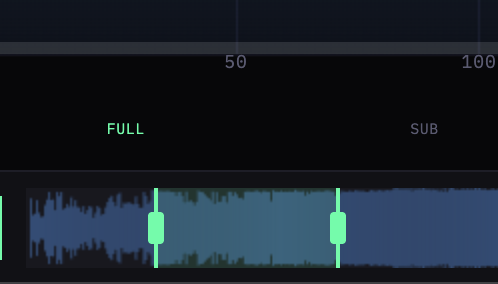
Set loop points
- With tracks added to your set, drag the beginning/end points on the waveform
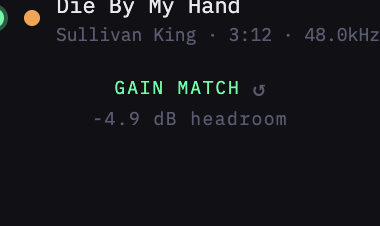
Gain match (aka level match or loudness match)
- If using LIVE INPUT, play your track for about 5 seconds to allow REFFREY to determine your track's integrated LUFS (shown in the 'Comparison' panel on the right)
- Once LUFS is calculated, you can click the 'GAIN MATCH' button shown below your reference tracks
- You can refresh GAIN MATCH at any time with the 'refresh' icon
More
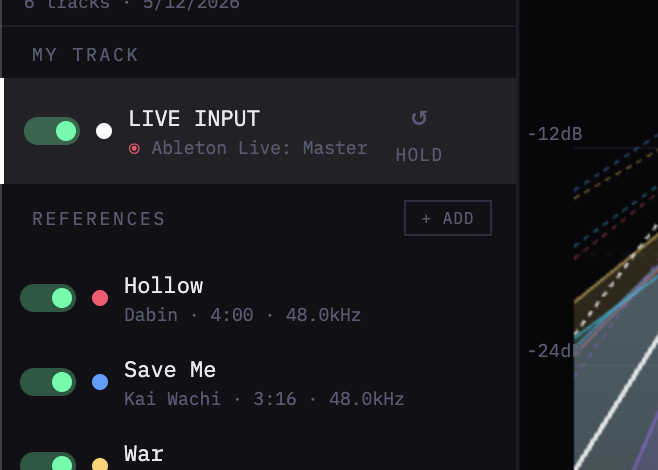
Switch between tracks
- You can quickly flip through all tracks by clicking, or using the keyboard ⬆️ UP / ⬇️ DOWN arrow keys. This includes switching to and from 'my track' and can be done while tracks are playing.
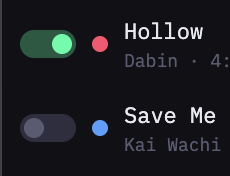
Enable / disable reference tracks
- Turning reference tracks on/off adds and removes their data from the visualizer without removing the track from the set.
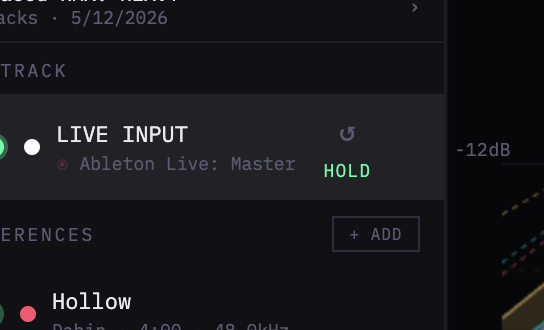
HOLD and refresh LIVE INPUT data
- To refresh accumulated data (LUFS, PEAK and AVG curves, etc.), click the refresh icon on the LIVE INPUT track. You can do this at any time, in both HOLD and non-HOLD modes
- To enable HOLD mode, click the 'HOLD' button on the LIVE INPUT track (green = HOLD is ON, gray = OFF). When switching HOLD on or off, the data will automatically refresh so that it's not contaminated by the previous state.
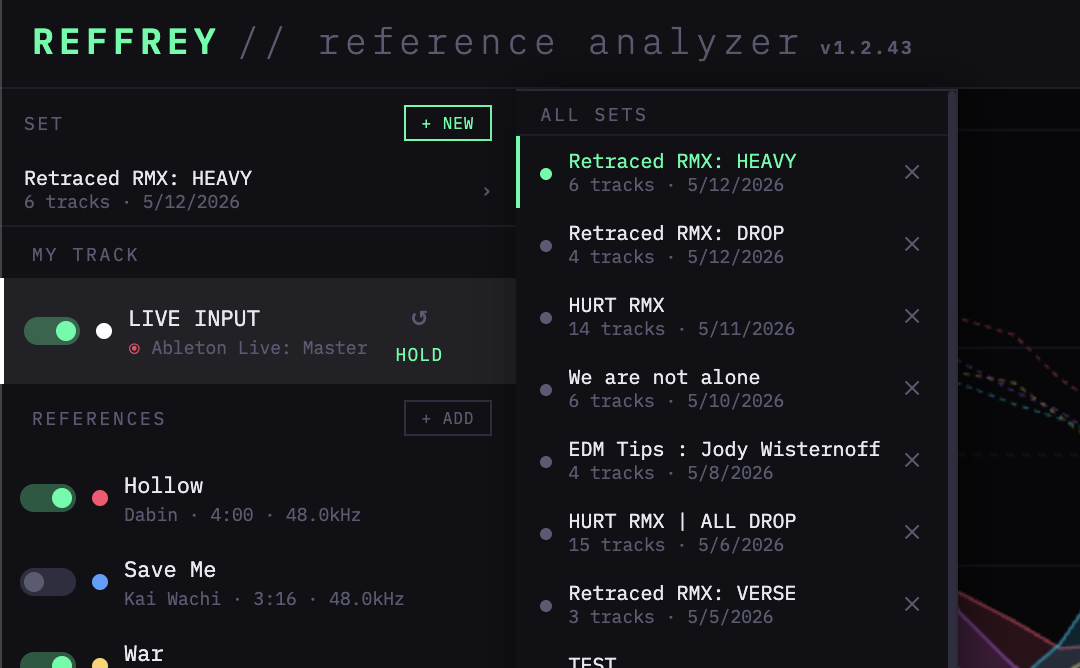
Creating new SETS and switching between saved SETS
- In the 'SET' section, click '+ NEW' to create a new set
- To save the new set, add at least one track and click the 'SAVE SET' button below the references
- Hover over the 'SET' section in the left panel to select from your saved SETS
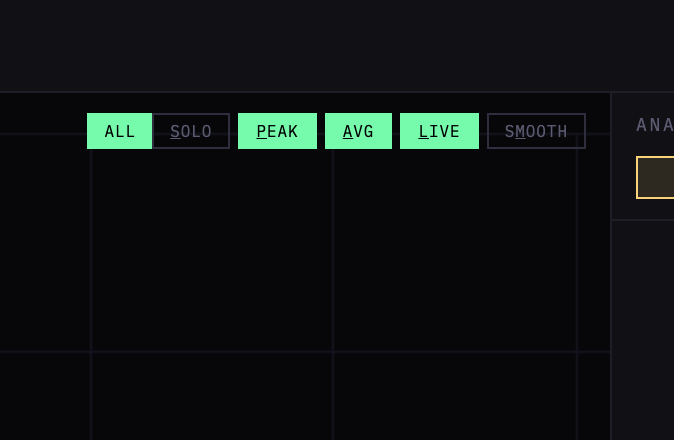
Visualizer controls
- All / Solo (S keyboard shortcut) toggles between showing all enabled data or only the selected track
- PEAK (P keyboard shortcut), AVG (A keyboard shortcut), and LIVE (L keyboard shortcut) buttons show and hide their respective curves
- SMOOTH (M keyboard shortcut) toggles LIVE curve smoothing on and off. When off, the LIVE data is shown in full detail with no averaging. Sampling rates still apply.
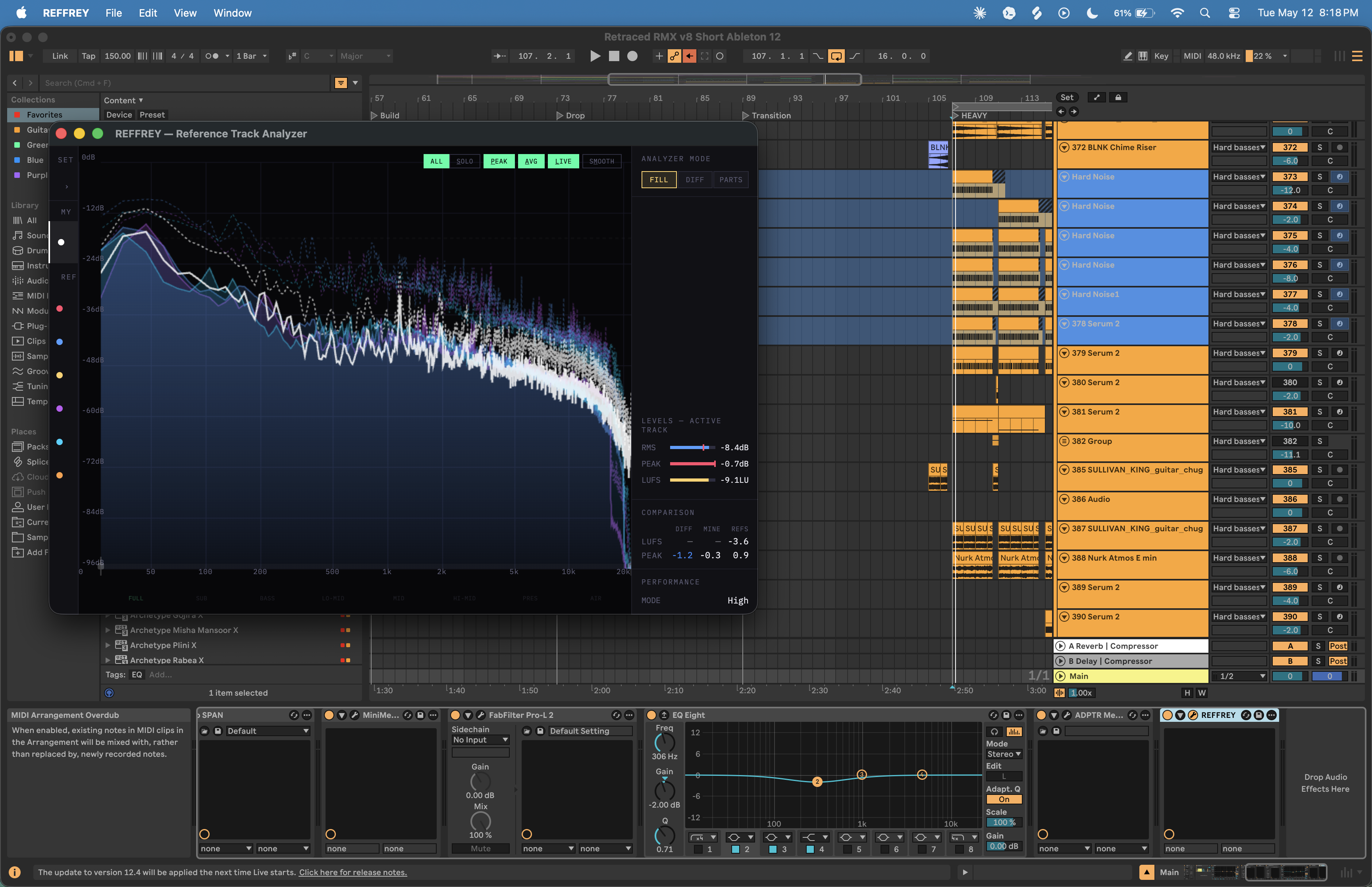
'Small' mode
- As you resize the app window, REFFREY will automatically hide the left, top, and bottom panes to give the visualizer more room
- To access the left panel, hover over the area and it will open
PIN to top
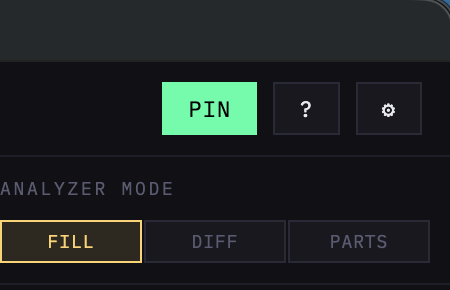
- 'PIN' will ensure that REFFREY is always on 'top' of other applications, like your DAW. You can turn this off by clicking the PIN button in the top right. If the button is hidden, you may need to resize the app window to increase its size to expose the button.
Switching analyzer modes
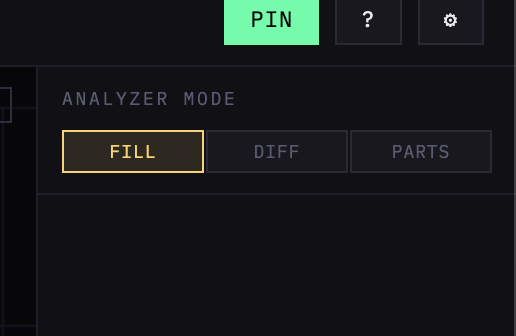
- To switch between analyzer modes, use the ⬅️ LEFT / ➡️ RIGHT arrow keys on your keyboard, or click on the analyzer mode buttons.
- Once in PARTS mode, the ⬅️ LEFT / ➡️ RIGHT arrow keys will cycle through the PARTS.